
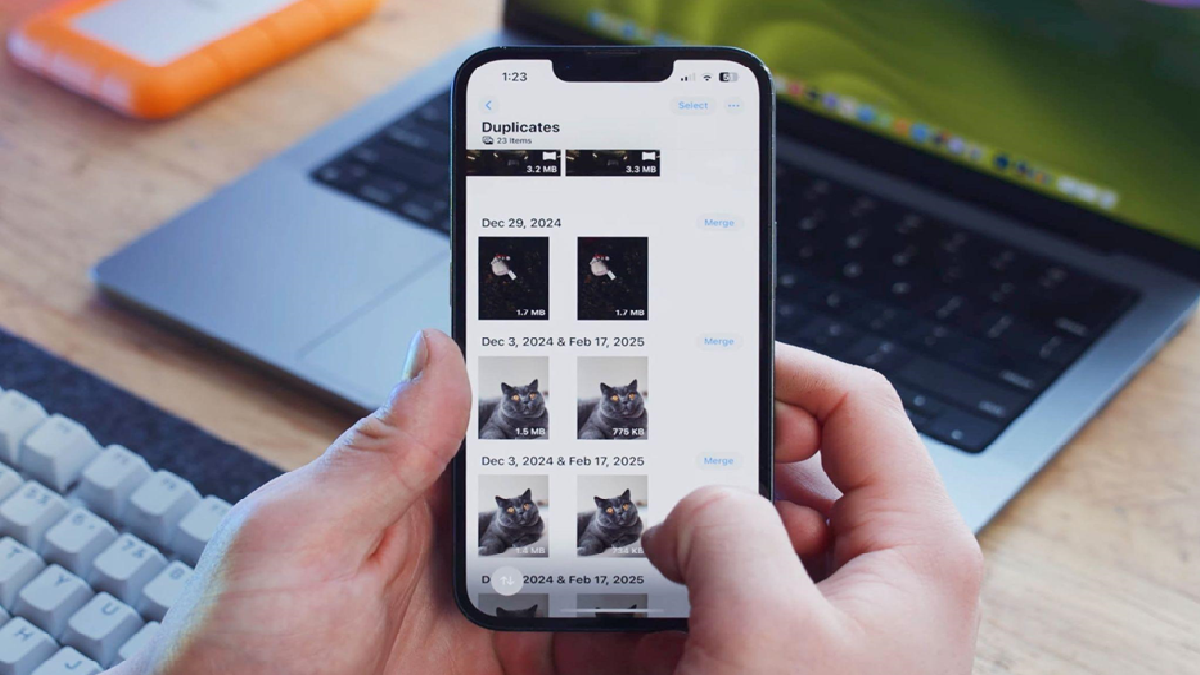
The introduction of iOS 16 brought a handy feature to iPhones that helps in removing duplicate photos effortlessly. This feature automatically detects identical copies of photos, groups them in a separate album, and allows users to merge them, keeping one copy and deleting the rest. While this built-in tool is a great addition, it only works with exact duplicates, leaving out near-duplicates. This limitation led to the development of third-party apps with more advanced detection algorithms to tackle this issue.
For iPhone users looking to clear out both duplicates and similar photos from their device, understanding how to utilize these tools is crucial. In this article, we will explore the step-by-step process of removing duplicate and similar photos on an iPhone, thereby organizing the photo gallery and freeing up storage space.
One of the simplest methods to clear out duplicate and similar photos is by using the native “Duplicates” utility on iOS. This tool, available on iOS 16 and later, identifies exact duplicate images and groups them together for deletion. However, the utility is not without its flaws, as some users have reported instances where it fails to recognize duplicates accurately. Despite this, the utility remains a useful tool for cleaning up photos on an iPhone.
To use the built-in “Duplicates” utility, users need to open the Photos app, scroll down to the Utilities section, and tap on Duplicates. This action will display a list of grouped duplicate photos, allowing users to select a group and merge them to keep the best quality photo and delete the others. An option to select all duplicates for merging is also available for more efficient cleanup.
For photos that are not exact duplicates but have minor differences, a specialized app like Clever Cleaner can be utilized. This app scans the photo gallery, groups duplicate and similar photos together, and presents the results in a user-friendly format. Users can then choose to delete all unselected copies with a single click using the Smart Cleanup feature or delete them selectively.
Clever Cleaner also offers features to delete old screenshots, find and delete large video files, and convert Live Photos to regular images. By utilizing these additional functions, users can further optimize storage on their iPhone and ensure a clutter-free device.
Once duplicates and similar photos have been identified and removed, it is essential to empty the Recently Deleted album to finalize the cleaning process. This step ensures that the deleted items are permanently removed from the device, freeing up storage space immediately.
In conclusion, by following the outlined steps and utilizing the available tools, iPhone users can effectively remove duplicate and similar photos, organize their photo gallery, and optimize storage space on their devices. The key lies in leveraging the built-in utility, as well as third-party apps, to efficiently clean up the photo collection and enjoy a more streamlined user experience on their iPhones.